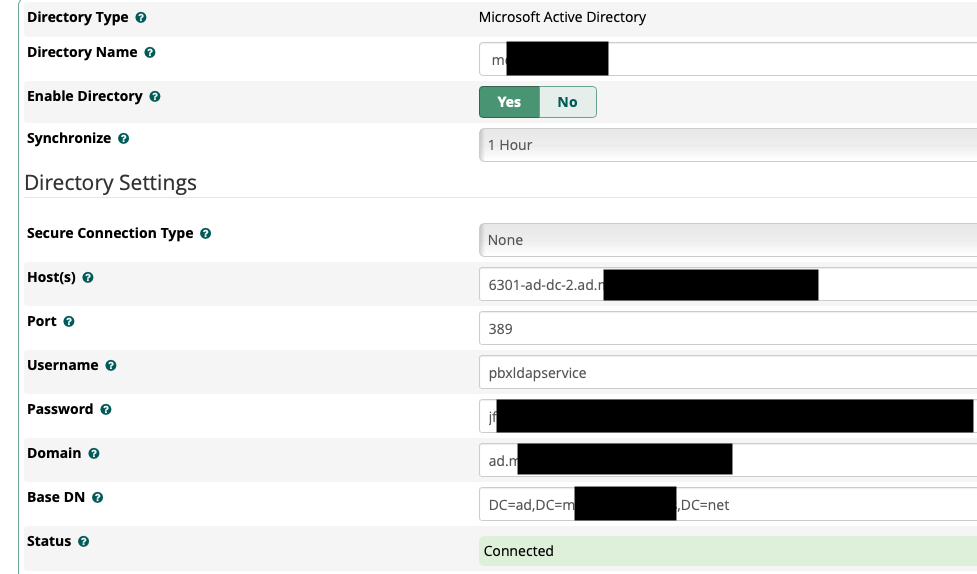
Ended I up getting it working. Needed to ad the CA cert from AD into the freepbx machine.
1. Confirm Active Directory is Serving LDAPS
From the FreePBX shell:
openssl s_client -connect dc1.ad.example.net:636 -servername dc1.ad.example.net -brief
■ If you see ‘CONNECTION ESTABLISHED’, LDAPS is active.
■■ If you see ‘verify error:num=20: unable to get local issuer certificate’, the FreePBX server does not
yet trust your AD CA.
2. Export the AD Root CA Certificate
On any domain-joined Windows system:
-
Run certmgr.msc
-
Navigate to Trusted Root Certification Authorities → Certificates
-
Locate your domain CA (e.g. Corp-Root-CA)
-
Right-click → All Tasks → Export
-
Choose Base-64 encoded X.509 (.CER)
-
Save as RootCA.cer
3. Copy the CA Certificate to the FreePBX Server
scp RootCA.cer root@freepbx:/tmp/
4. Add the CA to the System Trust Store
For FreePBX Distro / RHEL / CentOS / AlmaLinux:
sudo cp /tmp/RootCA.cer /etc/pki/ca-trust/source/anchors/
sudo update-ca-trust extract
For Debian / Ubuntu:
sudo cp /tmp/RootCA.cer /usr/local/share/ca-certificates/
sudo update-ca-certificates
5. Update the OpenLDAP Configuration
Edit /etc/openldap/ldap.conf and set:
sudo sed -i ‘s|^TLS_CACERTDIR.*|#TLS_CACERTDIR /etc/openldap/cacerts|’ /etc/openldap/ldap.conf
echo ‘TLS_CACERT /etc/pki/tls/certs/ca-bundle.crt’ | sudo tee -a /etc/openldap/ldap.conf
echo ‘TLS_REQCERT demand’ | sudo tee -a /etc/openldap/ldap.conf
Use /etc/ssl/certs/ca-certificates.crt on Debian/Ubuntu.
6. Verify LDAPS and Certificate Trustopenssl s_client -connect dc1.ad.example.net:636 -servername dc1.ad.example.net -brief
■ Expect: Verify return code: 0 (ok)
Then test LDAP bind:
ldapwhoami -H ldaps://dc1.ad.example.net:636 -D “[email protected]” -W -x
Result: Success (0) confirms working LDAPS.
7. Update the FreePBX Directory Settings
In FreePBX → Admin → User Management → Directories → [Your AD Directory]:
-
Secure Connection Type: SSL
-
Host(s): FQDN of your Domain Controller
-
Port: 636
-
Username / Password / Domain / Base DN: unchanged
Then Submit → Apply Config.
Note: Older FreePBX versions list ‘None’, ‘Start TLS’, ‘SSL’. ‘SSL’ = LDAPS.
8. Test and Confirm
Run:
fwconsole userman --syncall
Expected output:
[Userman] Connecting via LDAPS … success
and GUI status: Connected (green).
9. Summary Checklist
-
DC has valid server certificate ■
-
CA imported to system trust ■
-
ldap.conf points to system CA bundle ■
-
openssl verify = 0 (ok) ■
-
fwconsole userman --syncall successful ■
-
FreePBX directory uses SSL/636 ■